What Are Dual Subtitles? (And How to Get Them on Any Platform)
If you're learning a language by watching shows, dual subtitles are the single most useful feature you can add to your setup. This guide explains what they are, why they work, and exactly how to turn them on across Netflix, YouTube, Disney+, Prime Video, and Rakuten Viki.
📖 What Are Dual Subtitles?
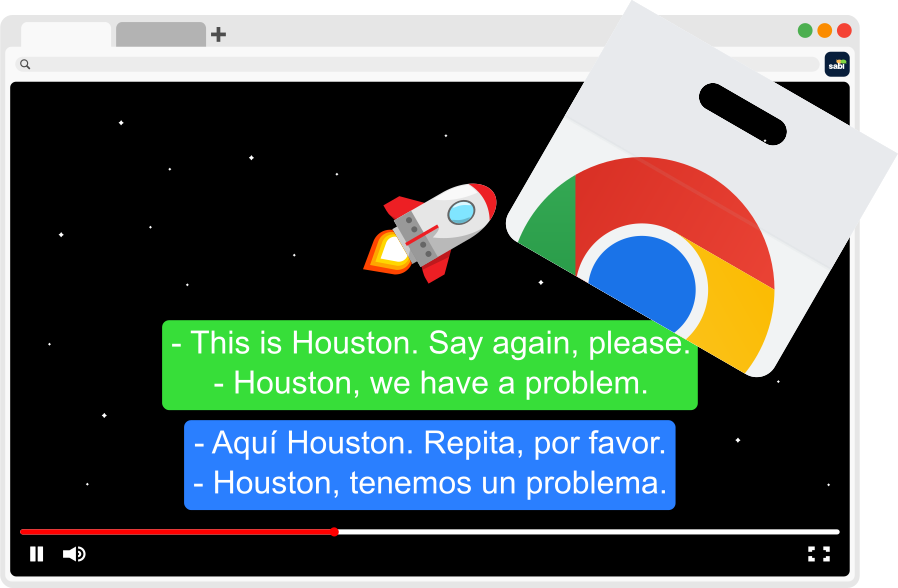
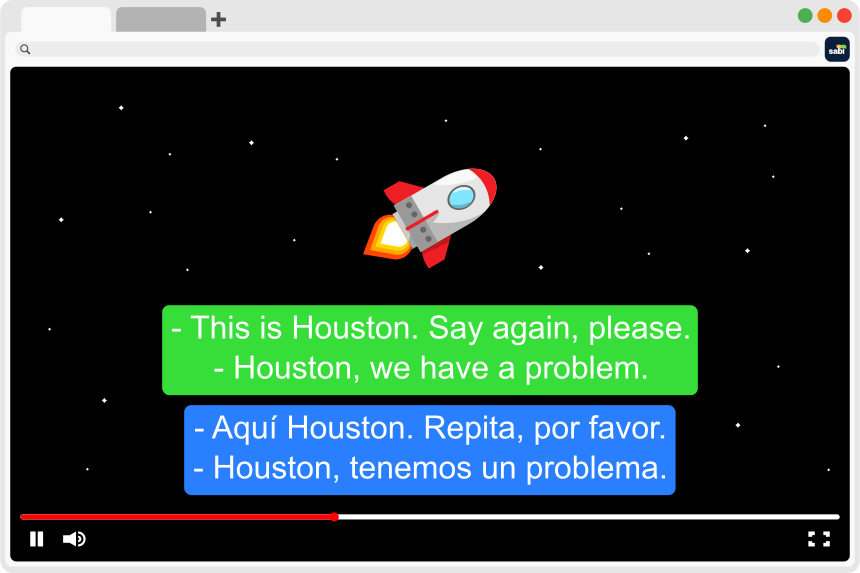
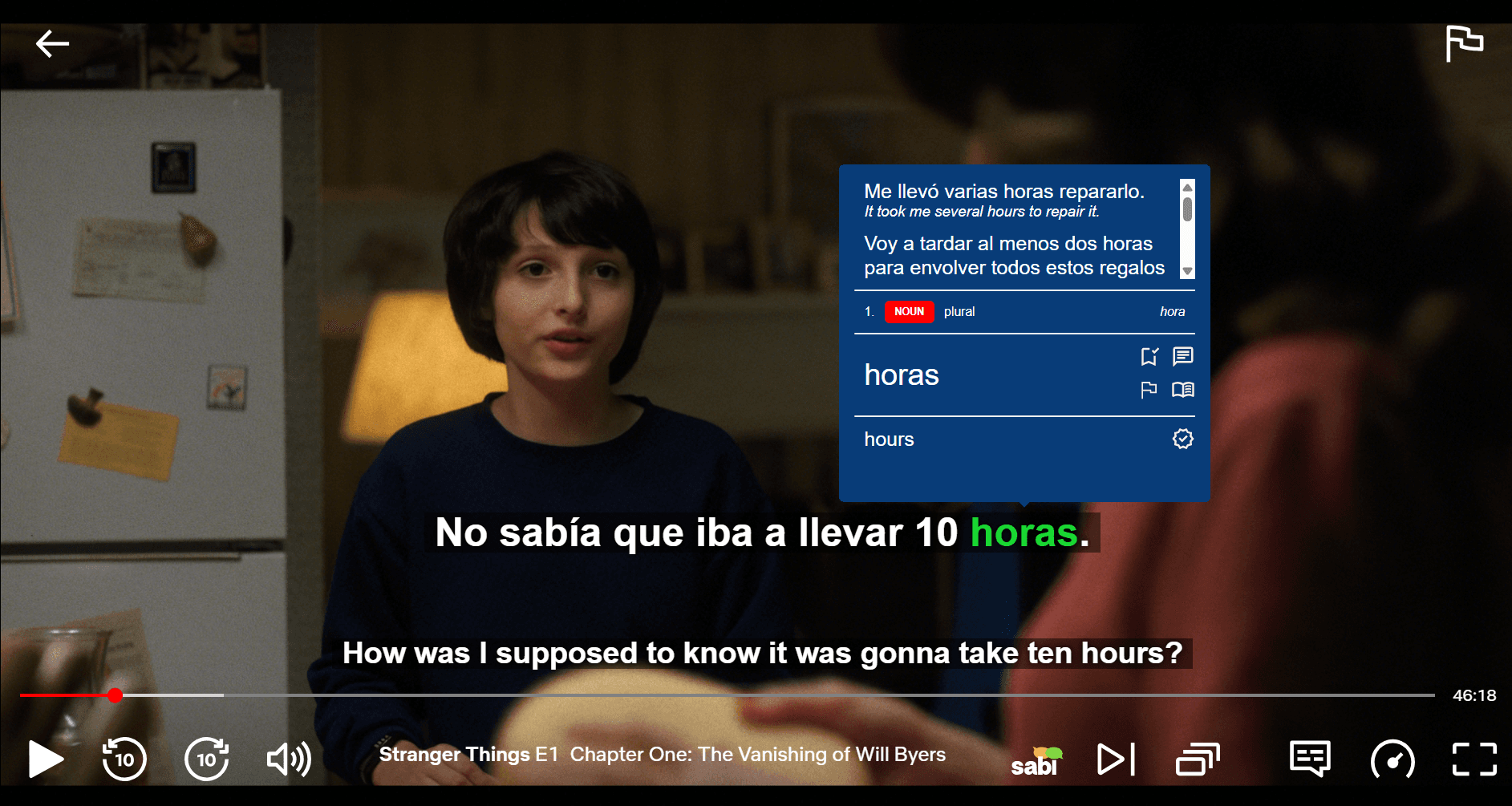
Dual subtitles display two languages at once while you watch. A typical setup shows:
— The target language subtitle (the language you're learning), so you can read along with the audio.
— The native language subtitle underneath, so you instantly know what it means.
They're also called bilingual subtitles, double subtitles, or dual subs. The point is to remove the constant stop-start of pausing to look things up: you get the meaning immediately and stay in the flow of the show.
Some tools let you blur the native-language line until you hover over it, so you only check the translation when you actually need it. This keeps you working in the target language while giving you a safety net.
📺 Do Streaming Services Have Dual Subtitles Natively?
No. As of 2026, none of the major streaming platforms let you display two subtitle tracks at once:
— Netflix, YouTube, Disney+, Amazon Prime Video, and Rakuten Viki all limit you to a single subtitle language at a time in their built-in settings.
— There's no hidden toggle or account setting that unlocks a second track.
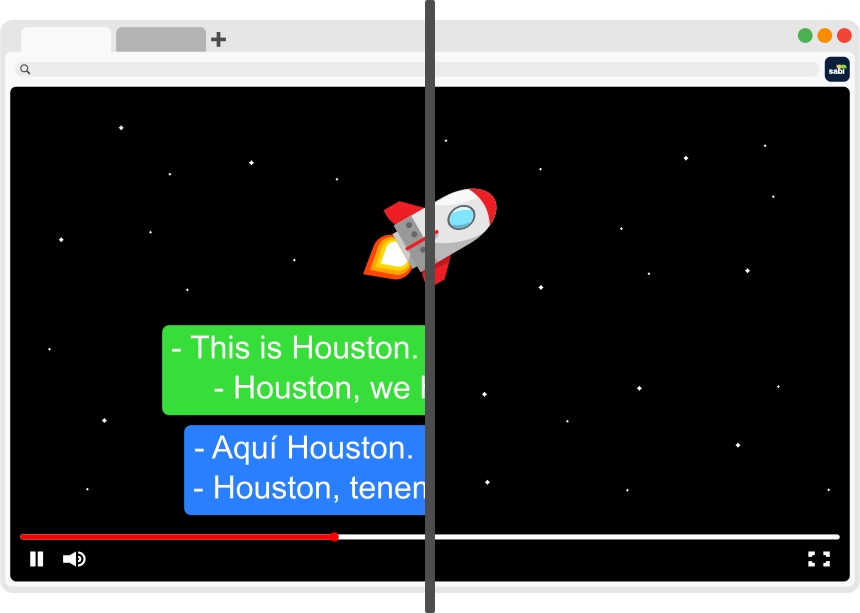
— The only workaround is a browser extension that reads the subtitle data the platform already has and renders a second line on top of the player.
That's exactly what Sabi does, across all five of those platforms.
🧠 Why Dual Subtitles Help You Learn
Watching with dual subtitles is a form of comprehensible input: you're exposed to real language that's just slightly above your level, with enough support to actually understand it.
— Instant meaning: You connect a new word to its meaning in the moment, without breaking immersion.
— Word segmentation: Seeing the target-language text helps you hear where one word ends and the next begins in fast speech.
— Listening and reading together: You train both skills at once, which reinforces memory better than either alone.
— A path to independence: Once you can follow along, you drop the native-language line, then the target-language line, then subtitles entirely.
For the research behind this, see our guide to learning a language with subtitles.
🛠️ How to Turn On Dual Subtitles (Any Platform)
The setup is the same on Netflix, YouTube, Disney+, Prime Video, and Viki:
1. Install the Sabi Chrome Extension (works on Chrome, Edge, Brave, and Opera).
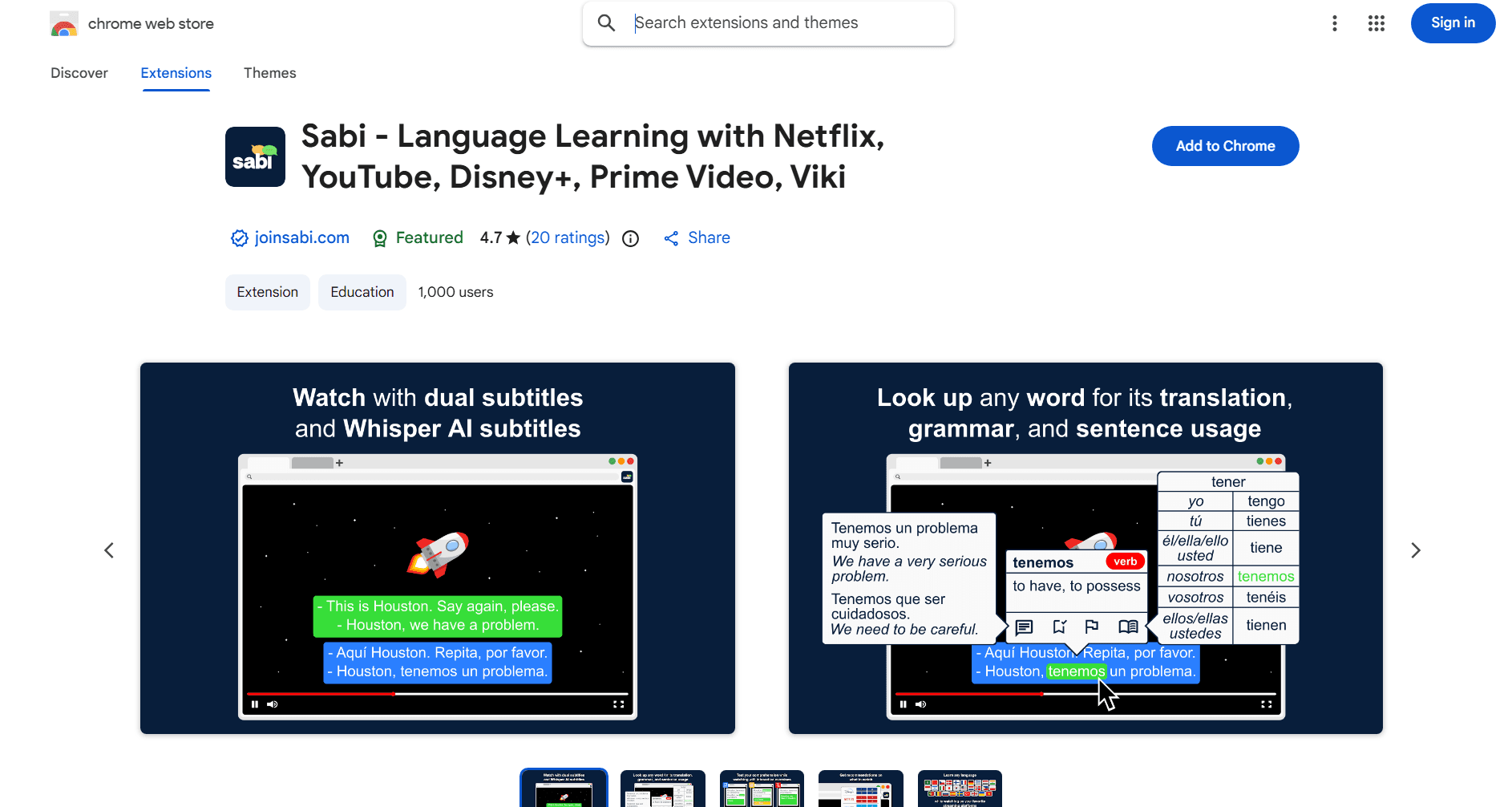
2. Open a show or video on any supported platform and start playing it.
3. Choose your audio language and your translation language on the Sabi startup screen.
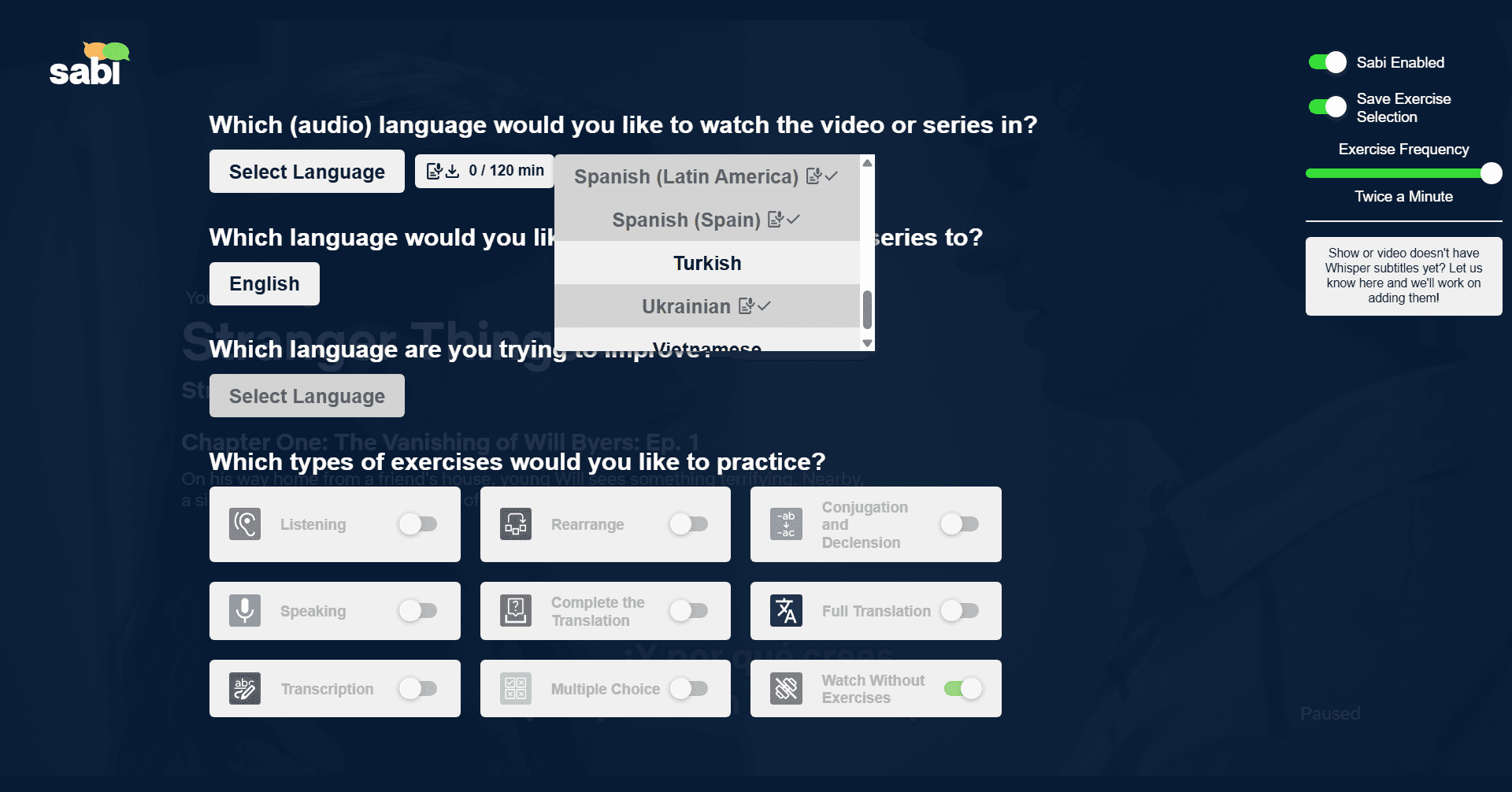
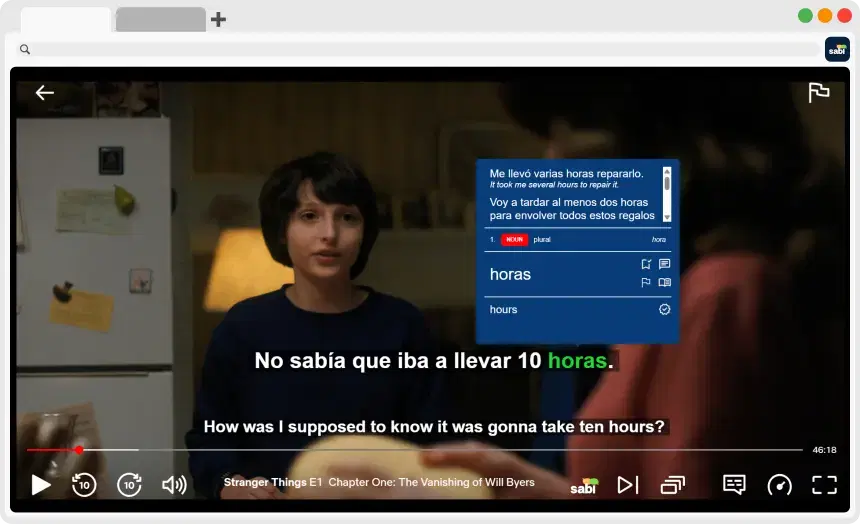
4. Watch with both subtitle tracks on screen. Hover over any word to see its translation, pronunciation, and grammar, and optionally blur the translation line until you need it.
If a video has no subtitles at all, Sabi can generate them from the audio with Whisper AI, so dual subtitles work even on content the platform never captioned, and match the spoken words on dubbed shows.
❓ Frequently Asked Questions
What are dual subtitles?
Dual subtitles show two subtitle tracks on screen at the same time, typically the language you're learning plus your native language, so you can read along with the audio and see the meaning at once. They're also called bilingual, double, or dual subs.
Does Netflix have dual subtitles?
Not natively. Netflix only lets you select one subtitle language at a time. To display two languages at once you need a browser extension such as Sabi.
How do I get dual subtitles on YouTube?
YouTube doesn't support dual subtitles on its own. Install the Sabi Chrome extension, open any video, and pick your target and native languages. Sabi renders both tracks over the player and can also fix inaccurate auto-captions with AI subtitles.
Are dual subtitles good for language learning?
Yes. Dual subtitles give you comprehensible input with instant meaning, help you segment fast speech into words, and train listening and reading together. The goal is to gradually remove them as your comprehension improves.
Can I get dual subtitles on Disney+ and Prime Video?
Yes, with a browser extension. Sabi adds dual subtitles, hover translations, and interactive exercises to Disney+, Prime Video, and Rakuten Viki, none of which offer the feature natively.